
Strength prediction
Predict longitudinal and combined unity for every element of one M-shape jumper.
1. Enter the inputs
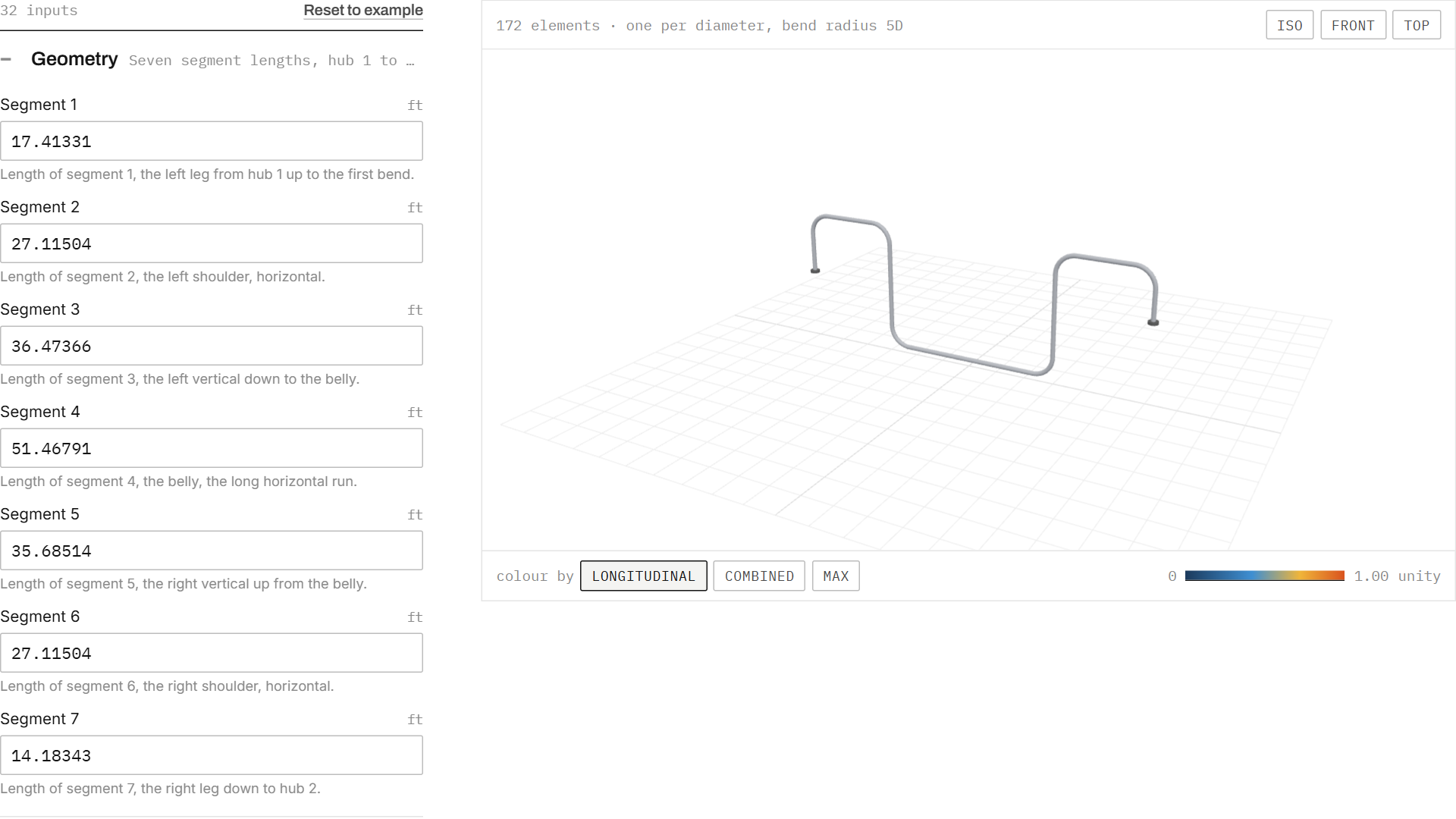
The 32 inputs sit in six groups: geometry, operating conditions, pipe section, hub 1 tolerances, hub 2 tolerances, and end expansion and settlement. Each field shows its unit and a one-line note. See Inputs and training ranges for the full list.
- Reset to example restores the worked example.
- The 3D view redraws as you change segment lengths or the outer diameter. The element count above it follows the same discretisation the model uses.
- Use iso, front and top to reset the camera. Drag to rotate, scroll to zoom.
2. Run the prediction
Press Run prediction. A result usually comes back in one to two seconds.
If any input is outside the range the model was trained on, a red note lists it. The prediction still runs, but treat it as an extrapolation.
3. Read the result
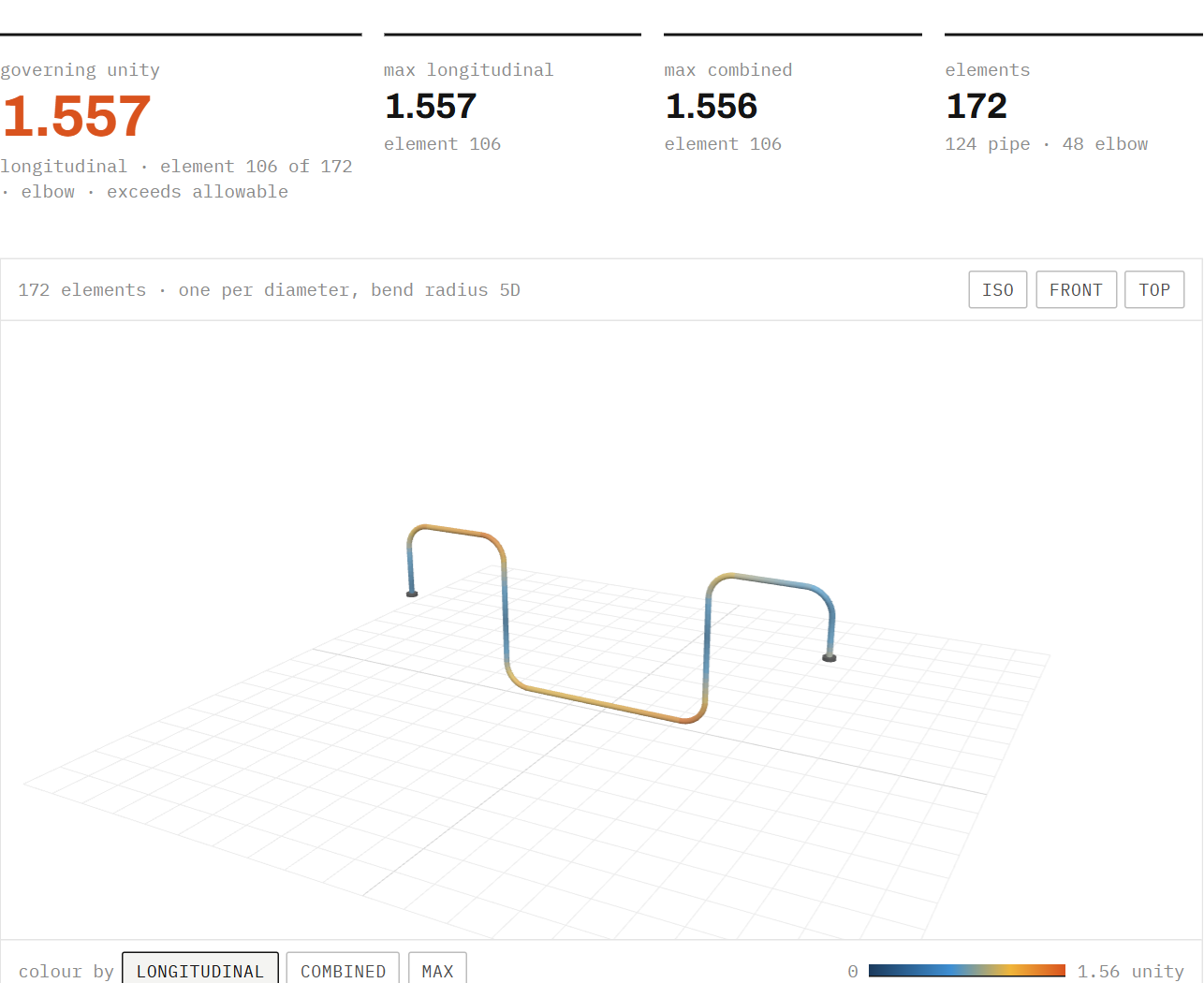
The summary strip shows:
- Governing unity, which check governs, the element number, whether it is a pipe or an elbow, and whether it is within the allowable.
- The maximum longitudinal and combined unity and where each occurs.
- The number of elements, split into pipe and elbow.
Switch the 3D colouring between longitudinal, combined and max. The scale runs from zero to the larger of 1.0 and the highest unity, so red always means at or above the allowable.
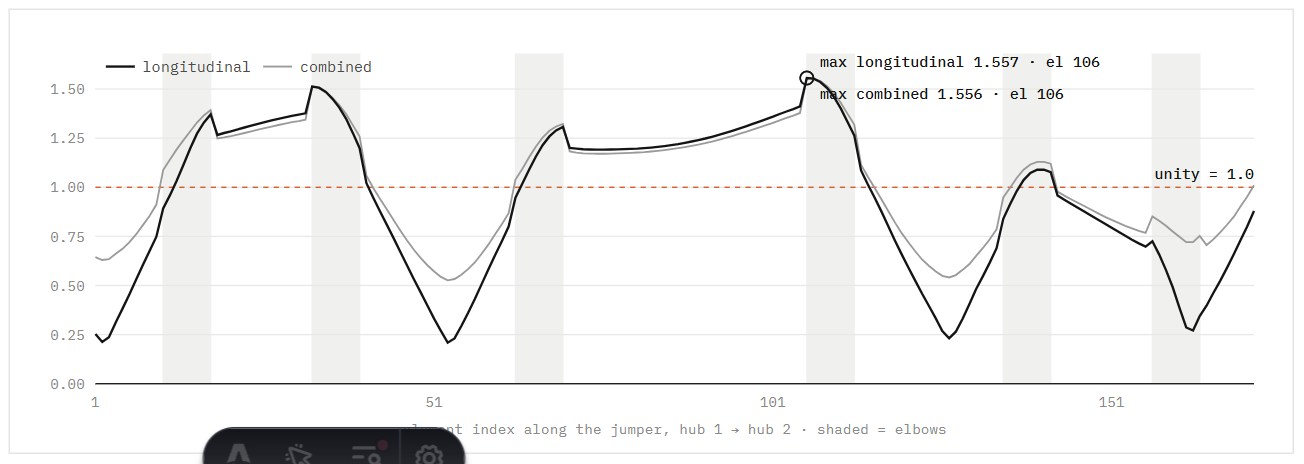
The profile chart is the quickest way to see whether the peak sits in a bend, on a leg, or at a hub.
4. Export
Below the chart, the per-element table lists both unities for every element, with values above 1.0 in red.
- Download CSV gives element number, type and both unities.
- Download JSON gives the same plus every input, so the case can be reproduced exactly. Attach it when you report a result.
Tips
- Change one input at a time. End expansion at the hubs and the pipe section usually move the result the most.
- A governing element at hub 1 or hub 2 is often driven by the hub tolerances and end displacements rather than the geometry.